Mod Manager
Nahida Desktop includes built-in mod management. In the Mod Manager, you can manage mod activation states and use features such as adding mods, assigning previews, and organizing groups.
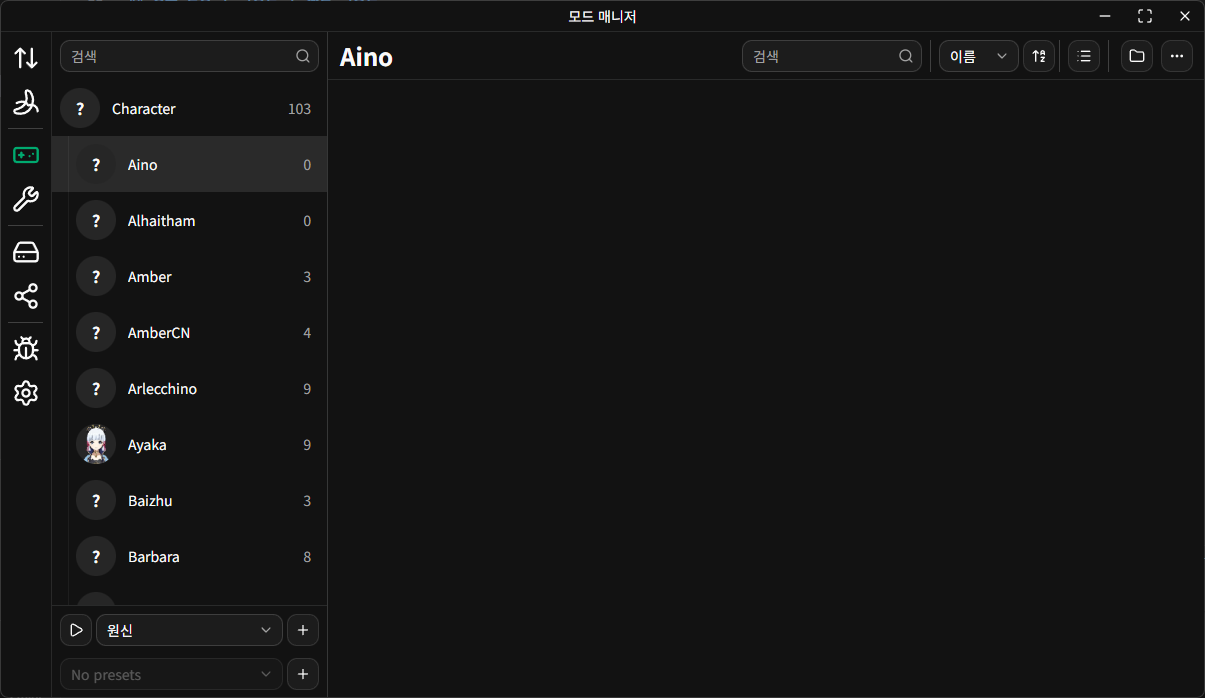
The Mod Manager page is divided into the left sidebar and the mod list area on the right.
Add a Game
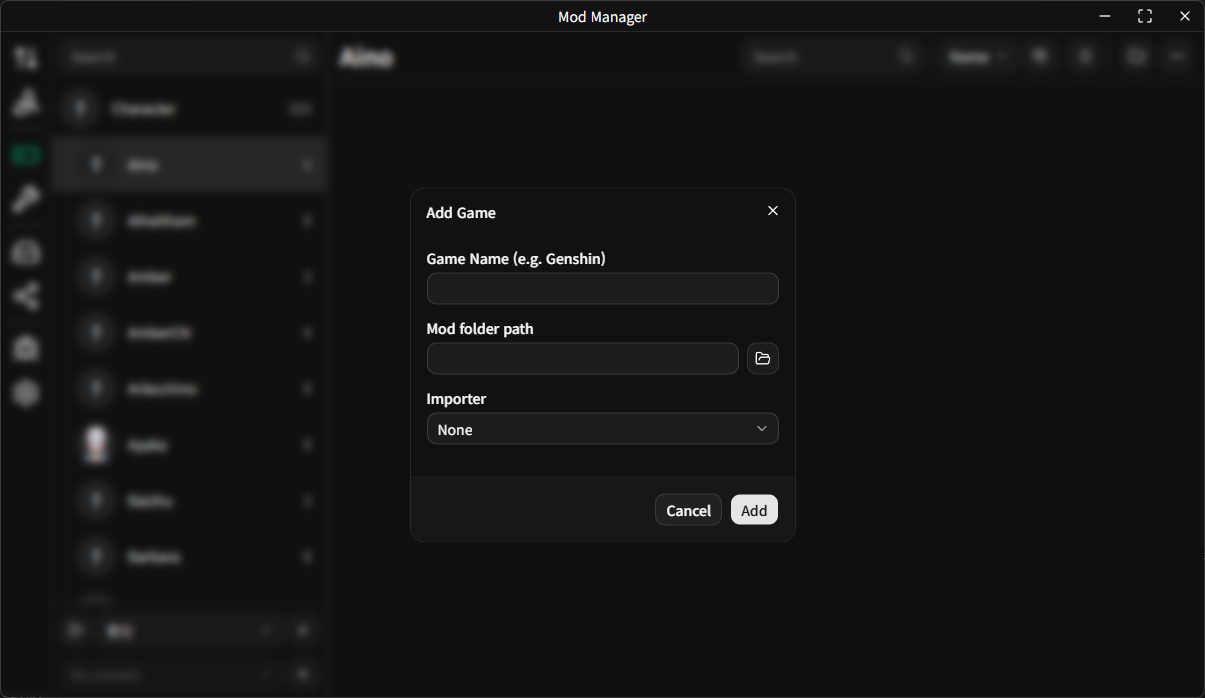
Click the + icon at the bottom of the sidebar to open the Add Game dialog.
Game Name: The name shown in the game list inside Mod Manager.Mod Folder Path: Click the folder icon on the right to select the mod folder for that game.C:\Users\User\AppData\Roaming\XXMI Launcher\GIMI\ModsD:\Mods\Genshin- etc.
Importer: If an XXMI path is configured, you can select which XXMI importer to use for that game.
Folder Structure
The following is the recommended mod folder structure.
Character
├─ Aino
│  ├─ AinoMod1
│  └─ AinoMod2
└─ Amber
   ├─ AmberMod1
   └─ AmberMod2
Enemy
└─ EnemyMod1
NPC
└─ Katheryne
   └─ KatheryneMod1
INFO
The first-level folders directly under the configured mod folder are shown in the sidebar.
Because of that, it is recommended not to place mods directly in the configured mod folder. Create category folders such as Character, Enemy, or NPC first, then place mod folders inside them.
For example, if your mod folder is configured as:
C:\Users\User\AppData\Roaming\XXMI Launcher\GIMI\ModsThis structure is not recommended:
C:\Users\User\AppData\Roaming\XXMI Launcher\GIMI\Mods\SomeCharacterModThis structure is recommended instead:
C:\Users\User\AppData\Roaming\XXMI Launcher\GIMI\Mods\Character\SomeCharacterModSubgroups
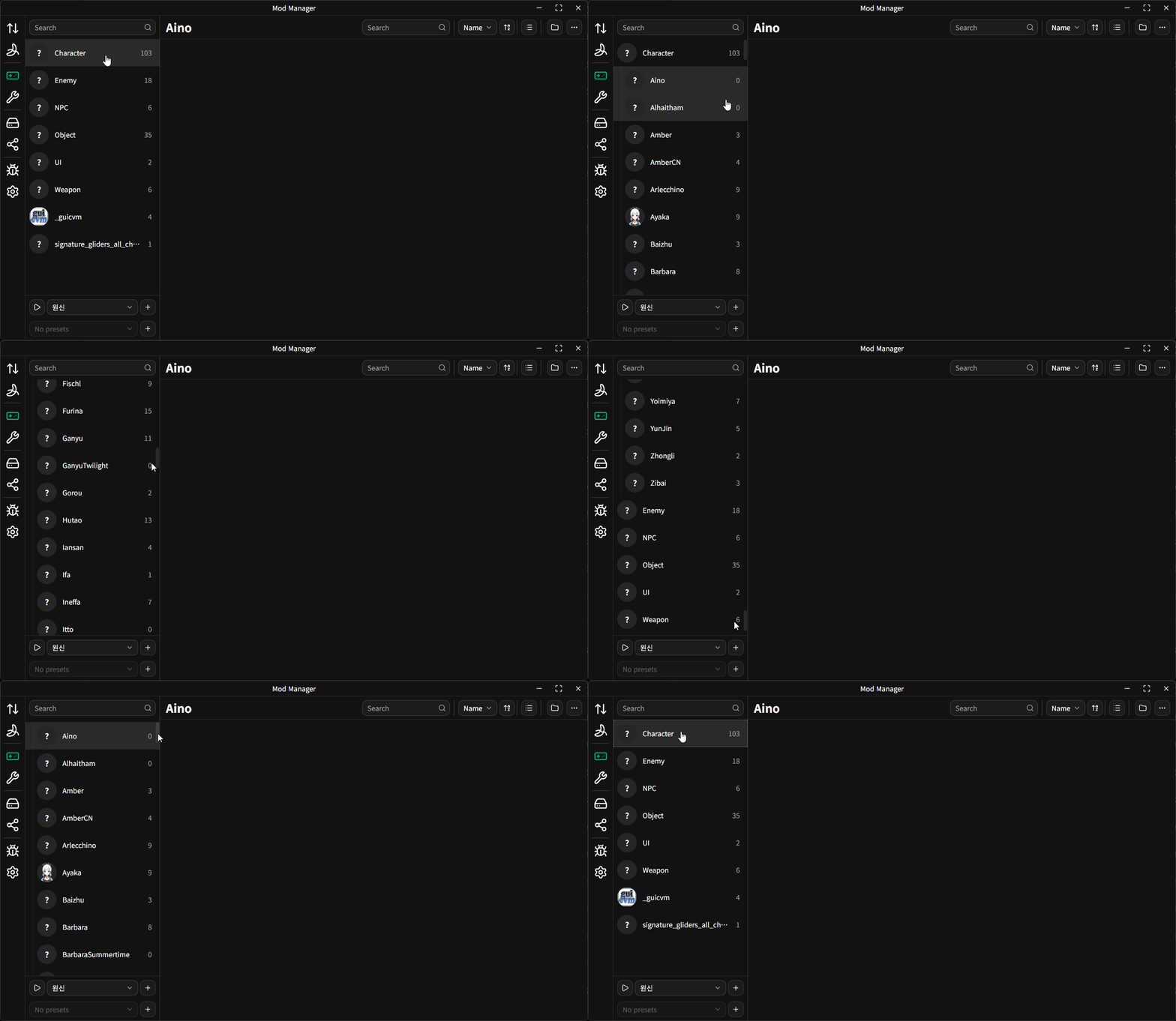
Groups such as Character that contain one or more subfolders can be marked as subgroups by right-clicking them in the sidebar.
Groups marked as subgroups can be collapsed and expanded by clicking them.
While holding Ctrl, clicking a group expands it to reveal its subfolders in the tree (or keeps it expanded) and selects it. While holding Alt, clicking a subgroup collapses/expands its parent group.
Add Mods
With a group selected in the sidebar, you can add a new mod in the following ways:
- Download a mod from GameBanana.
- Drag and drop a mod folder or compressed mod archive into the mod list.
- Click the
...button in the header above the mod list, selectDownload, and enter the URL of the file to download.
Previews
Nahida Desktop's Mod Manager looks for image or video files named preview inside a mod folder, case-insensitively, and uses them as the preview.
Supported preview media formats are jpeg, png, webp, avif, mp4, and webm.
If no media file named preview exists, the first supported media file found in ascending order inside the folder is used instead. If no supported media exists, no preview is shown.
INFO
If Search previews in subfolders is enabled in Settings → Mods, the app searches subfolders recursively as well.
Set or Replace a Preview
For groups in the sidebar, you can assign a preview by dragging and dropping an image or video file.
For mods, the workflow depends on whether a preview already exists:
- If there is no preview: copy a media file, then click the paste button in the preview section.
- If there is already a preview: right-click the existing preview and replace it with another media file.
Quick Launch Games
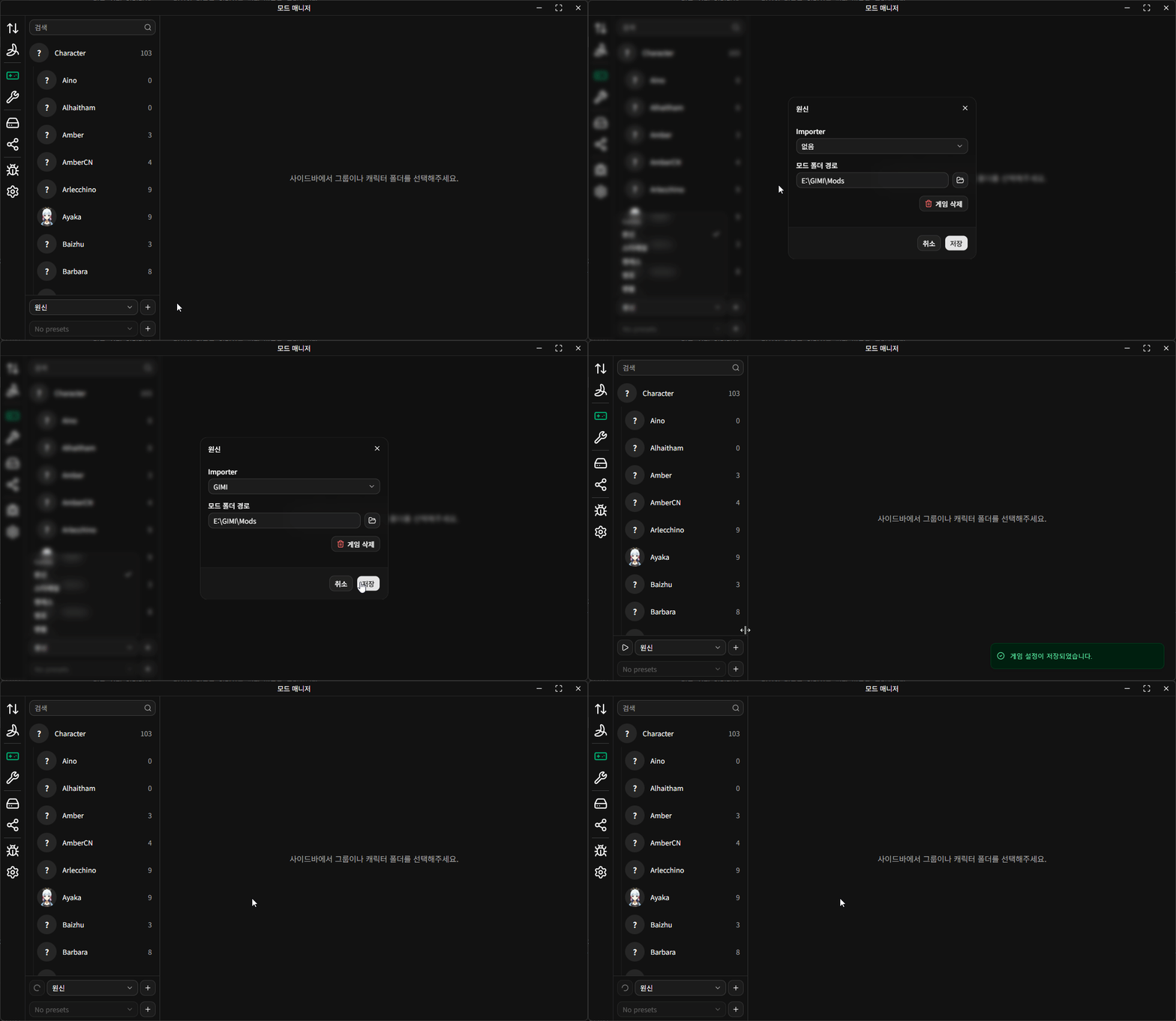
If the XXMI path is configured, you can launch games from Mod Manager without opening the XXMI Launcher.
- Click the pencil icon on the right side of a game in the game list to open the settings dialog.
- Select the importer to use for that game, then click the save button.
- Click the play icon on the left side of the game trigger to launch the game.