4001 Fixer
In Genshin Impact, the illegal program detection error 4001 continues to be reported. Previously, this could often be handled by applying cloud provider flags and similar workarounds, but recently more cases have appeared where older methods no longer solve the issue.
In Korean communities, many users have confirmed that the 4001 issue can often be resolved by cloning the XXMI-Libs-Package repository directly and using a self-built DLL instead of the default DLL provided by XXMI.
The 4001 Fixer brings the available GIMI 4001 workarounds into one tool. It can build a replacement d3d11.dll or apply native PE padding diversification to the DLL.
Install Required Build Tools
This feature automates much of the DLL build process, but you still need to install the required build tools yourself.
- Download and run Visual Studio Build Tools 2022.
- Under Individual components, select the following items and install them:
- MSVC v143 - VS 2022 C++ x64/x86 build tools (latest)
- Windows 11 SDK (10.0.22621.0)
WARNING
Installing the build tools requires approximately 4.4 GB of disk space. Make sure you have enough free space before proceeding.
Configure the XXMI Path
To use this feature, you need to configure the XXMI path first. See Set Up XXMI for details.
Build the DLL
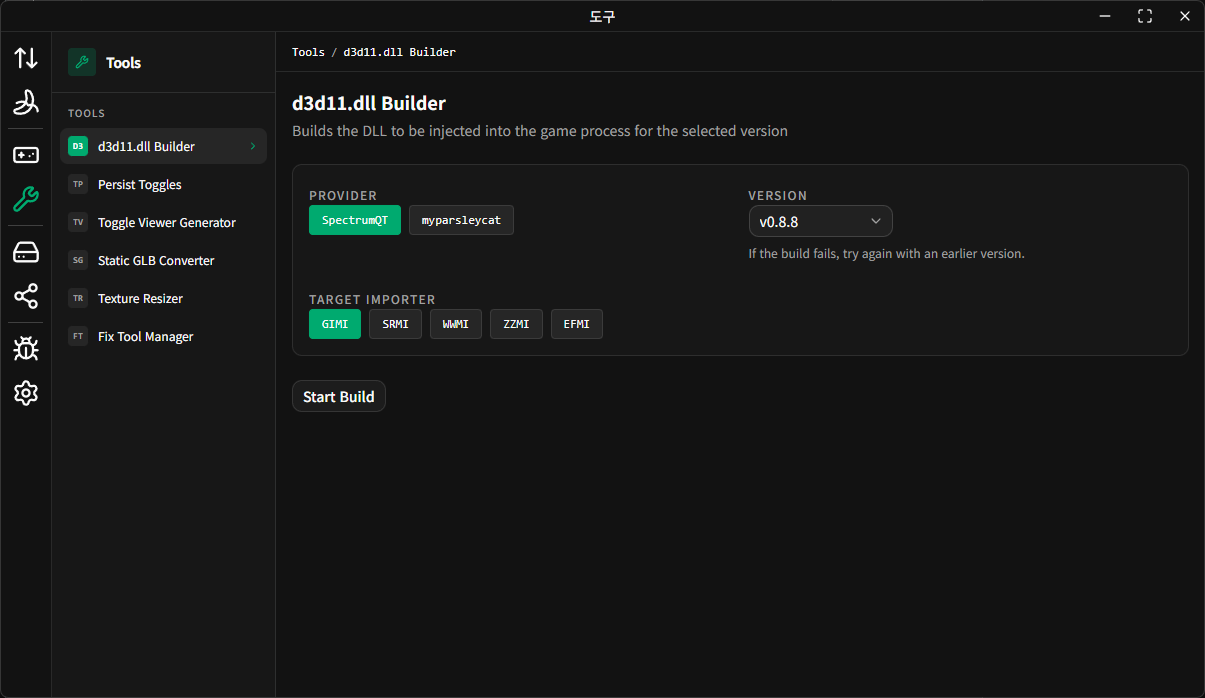
On the build screen, you can configure the following options:
Provider: Select the provider of the
XXMI-Libs-Packagerepository to use for the build.Version: Select the XXMI library version to build.
Target Importer: Select the importer that will use the built DLL. Since the
4001error currently occurs only in Genshin Impact, choose GIMI.
After selecting all options, click Start Build to begin building the DLL.
Diversify DLL Padding
The Diversify DLL Padding tab backs up the selected GIMI importer's existing d3d11.dll, then diversifies safe PE padding bytes without changing the DLL layout.
Before replacing the DLL, Nahida Desktop creates a pepd backup file in the same folder. The backup filename embeds a short SHA-256 hash of the diversified DLL, so the tool can detect when the DLL has been replaced after diversification (for example, by the Start Build action or by manual edits). If the backup is present and its embedded hash matches the current d3d11.dll, the tool treats the DLL padding as already diversified and shows a restore action. Otherwise, the stale backup is removed automatically and the DLL is treated as not yet diversified.
System folders and administrator permission
If the selected GIMI importer path is under a protected location such as C:\Program Files\, Nahida Desktop may not be able to write d3d11.dll with normal user permissions.
In that case:
- The 4001 Fixer shows a warning that Windows may ask for administrator permission.
- Build, diversify, and restore still prepare files in a user-writable temp directory when possible.
- When the final install into the importer folder needs higher privileges, Windows shows a UAC prompt and the elevated write is performed only for that step.
- If the game is currently using
d3d11.dll, elevation will not help. Close the game first.
If you deny the UAC prompt, the operation fails with an elevation error. Approve the prompt and try again.
Unsafe Mode
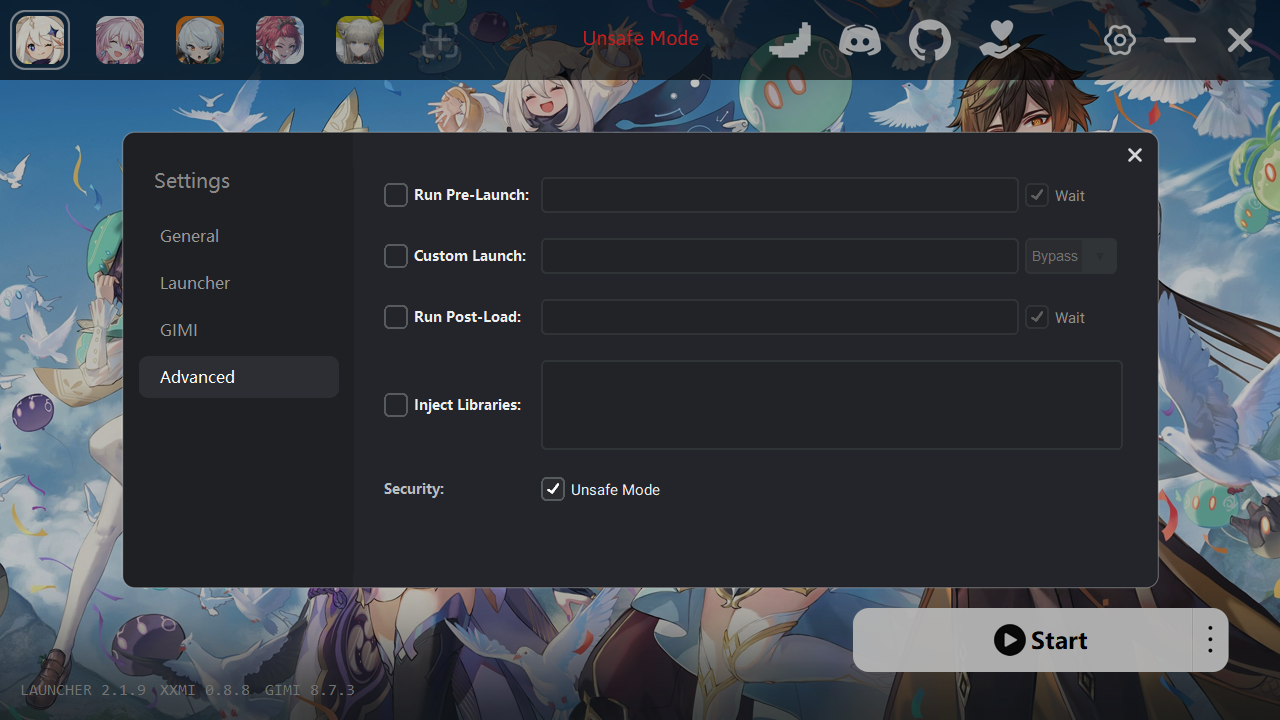
The XXMI Launcher shows a warning when you use an unverified DLL instead of an officially provided one.
When you apply a DLL fix through the 4001 Fixer, Unsafe Mode is enabled automatically. However, if automatic activation does not apply correctly, you may still see a warning that the DLL signature is invalid.
If you see a warning that the d3d11.dll signature is invalid, enable Unsafe Mode manually in the XXMI Launcher settings.
After enabling Unsafe Mode, run the importer again to use the DLL you built.