Set Up XXMI
This page explains how to configure the XXMI Launcher path and which extra features become available after that path is set.
Configure the Path
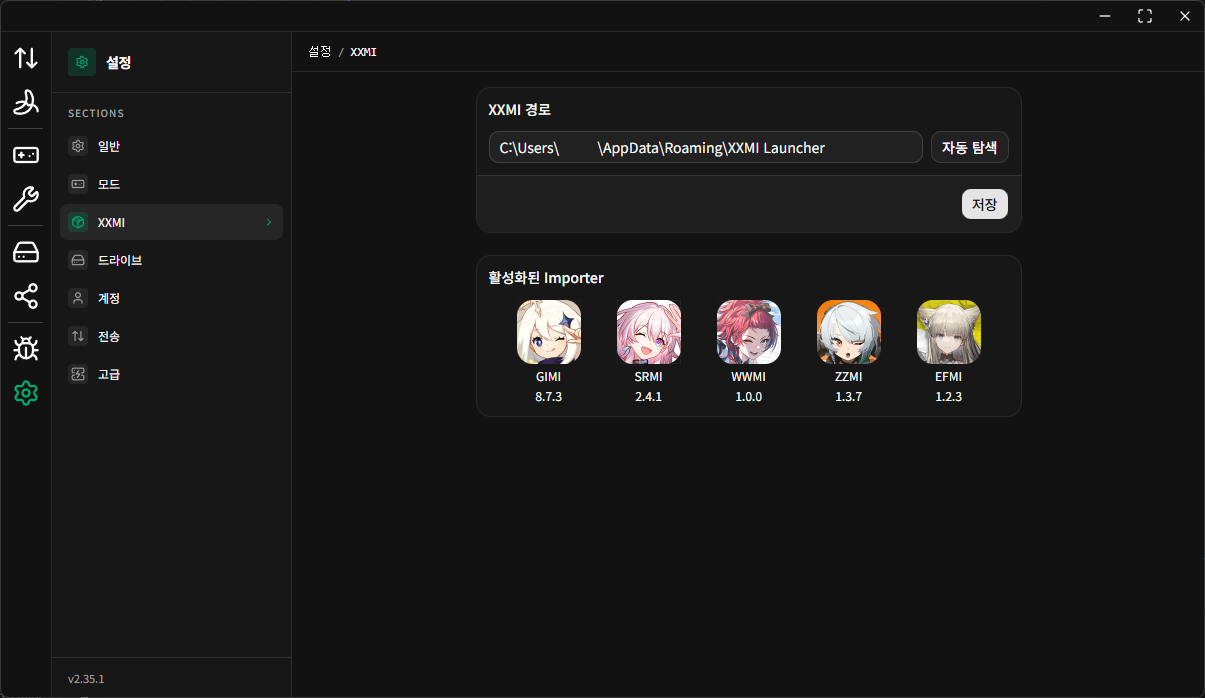
- Click the settings icon in the left sidebar to open the Settings page.
- Select
XXMIfrom the section sidebar on the Settings page. - Enter the XXMI Launcher path in
Set XXMI Path, then click the save button.
If the path is valid and there are importers already used by XXMI Launcher, the list of enabled importers is shown without any separate error message.
If you did not change the installation directory, XXMI Launcher is typically installed at the following path:
%AppData%\XXMI LauncherIf XXMI Launcher is not in the default location or you do not remember where it was installed, you can use the Auto Detect feature.
WARNING
The auto-detect feature searches all active drives for XXMI Launcher.
If more than one XXMI Launcher installation exists, it may choose a path other than the one you intended, so it is recommended to verify the detected path once more.
Features Available After Setting the Path
After the XXMI path is configured, you can use the following features:
- Quick launch games
- d3d11.dll Builder
- Persist Toggles
- Toggle Viewer Generator