Model Viewer
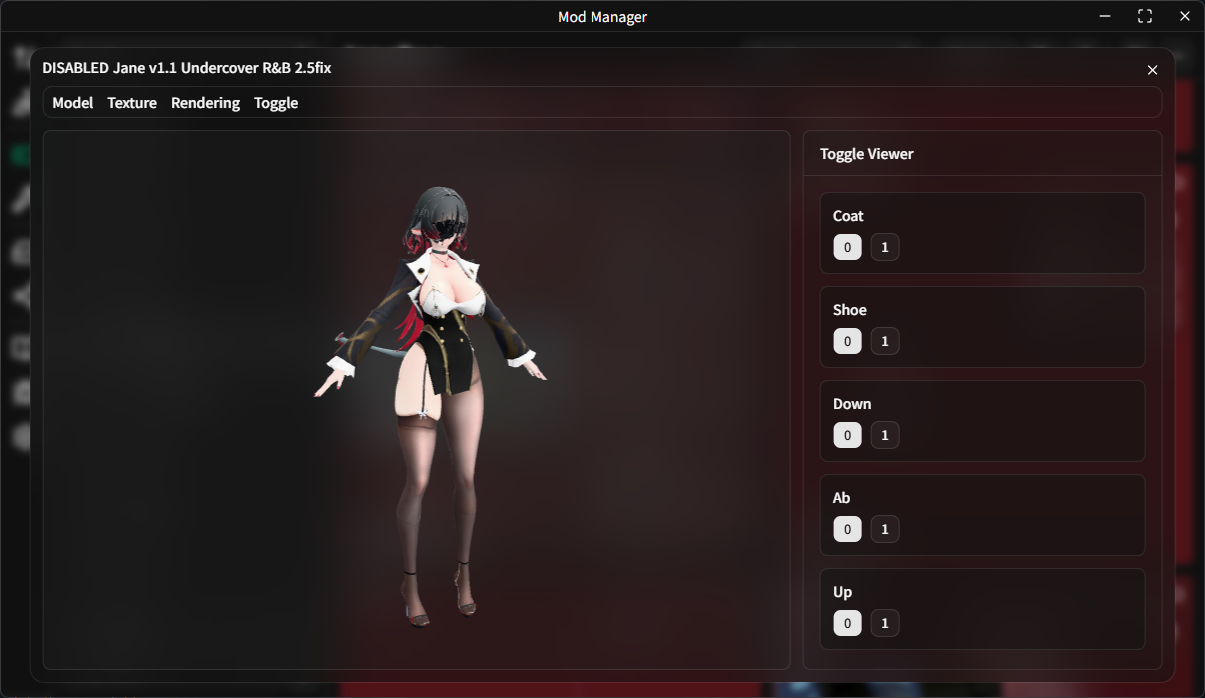
With Model Viewer, you can preview a mod's model, textures, and toggle states without launching the game.
WARNING
This feature is still under development. Some mods may fail to open in the viewer, or their models or textures may be displayed incorrectly.
Supported Games
The viewer currently supports mods for the following games:
Genshin ImpactHonkai: Star RailZenless Zone ZeroWuthering WavesArknights: Endfield
Open Model Viewer
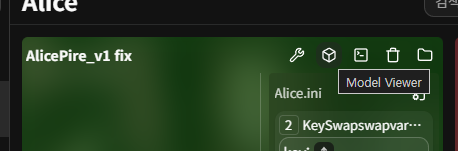 In the card layout, click the Model Viewer button in the mod card header to open the viewer.
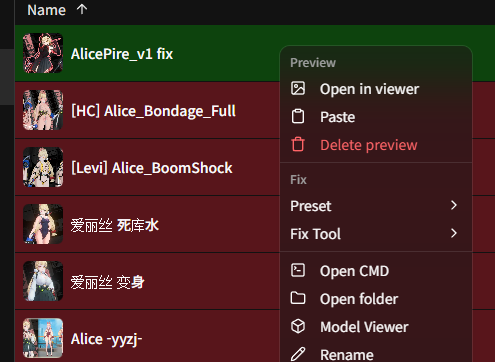 In the list layout, right-click the mod and select
 Model Viewer.
Top Menu Bar
- Model: Provides basic controls such as rotating the model, resetting the model, and resetting the camera.
- Texture: Changes texture-related display options.
Double Sided: Renders both the front and back faces of polygons.
- Rendering: Changes the rendering mode so you can inspect the model in different ways.
- Toggle: Saves or resets the current toggle state.
Save to INI: Applies the current state selected in the toggle viewer to the INI file.Reset: Restores toggle states to the default values from the INI file.
- Misc: Provides extra actions for the current mod.
Capture and set preview: Captures the current visible viewer image as a centered 1:1 square PNG and saves it aspreview.pngin the current mod folder.
Capture a Preview from the Viewer
If you want to use the current viewer image as the mod preview, open Misc → Capture and set preview.
The viewer captures only the active 3D viewport. The menu bar and the toggle panel on the right are not included in the image.
If the mod already has a preview.* file, the viewer asks for confirmation before replacing it with the new preview.png.
Toggle Viewer on the Right
For mods that include toggles, you can directly change their states in the toggle viewer on the right. When a value changes, the model is rendered again to match that state.
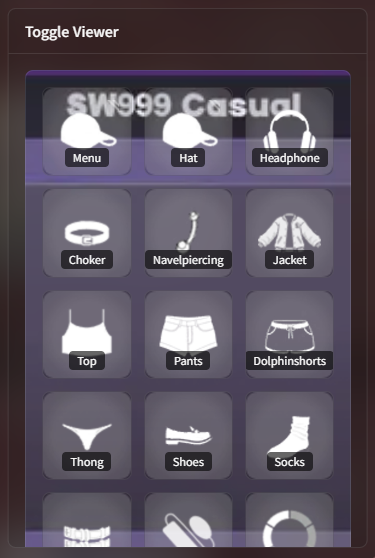 If the mod uses the in-game toggle viewer, related UI assets may also be displayed.
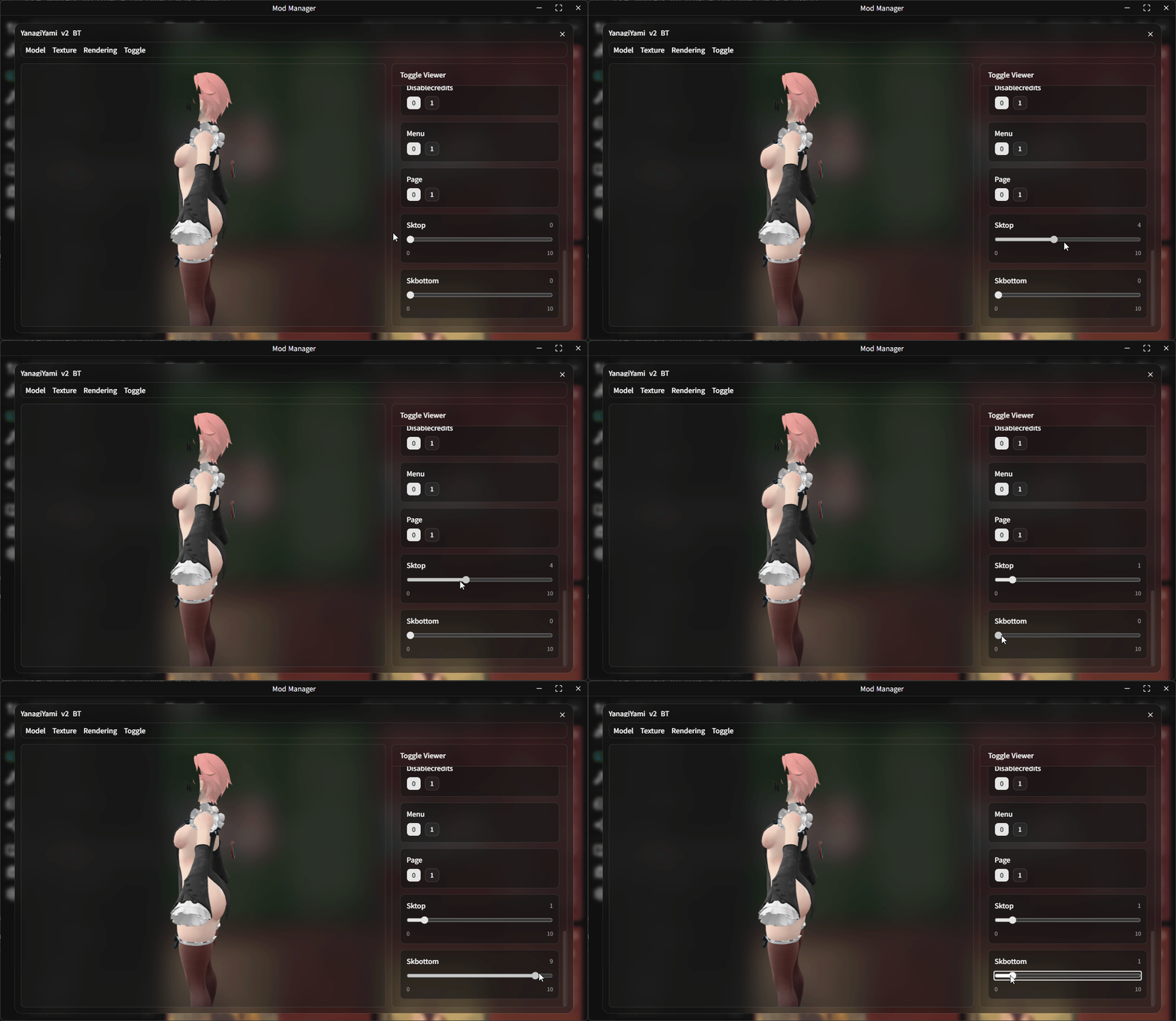 If the mod uses sliders, interactive sliders are also shown in the toggle viewer.
Animation Playback
If the mod includes animations, an animation playback panel will appear at the bottom of the viewer.
You can use the playback controls to play, pause, or reset the animation, and drag the slider to scrub through specific frames.